

Python Setup and Use (TickTockIT)
Python is a widely used programming language for automation, web development, data analysis, artificial intelligence, scientific work and system administration. It is relatively easy to begin using, but a structured setup is essential if projects are to remain reliable, secure and maintainable.
A Python installation normally includes the interpreter that runs Python code and a large standard library of built-in modules. Additional packages can be installed with pip, while virtual environments keep the dependencies of separate projects isolated.
The basic workflow is similar on Windows and Linux: install or confirm Python, create a project folder, create a virtual environment, install the required packages, select the correct interpreter in the editor and run the program from that environment.
What Is Python?
Python is a high-level, general-purpose programming language designed to favour readable code. It supports procedural, object-oriented and functional programming and has a very large collection of third-party packages.
Python source files normally use the .py extension. The interpreter reads the instructions in a file and executes them. Python can also run interactively, allowing individual commands and expressions to be tested immediately.
Python is used for small utility scripts as well as large production systems. Its accessibility makes it suitable for beginners, while its libraries and integration options make it useful to experienced developers, administrators, researchers and data specialists.
Installing Python on Windows
For a standard Windows installation, download a supported version of Python 3 from the official Python website. Avoid obsolete Python 2 releases and unofficial download sites.
Run the installer and review the available options. If the installer offers to add Python to the system path, enable that option when you want to start Python directly from PowerShell or Command Prompt. The Windows Python launcher may also provide the py command.
After installation, open PowerShell or Command Prompt and check the version:
py --versionpython --version
A version number confirms that the command can locate Python. The py launcher is useful when more than one Python version is installed because it can select the required interpreter explicitly.
Installing Python on Linux
Many Linux distributions already include Python 3 because operating-system utilities depend on it. Check the installed version with python3 --version.
If Python is missing, install it through the package manager supplied by the distribution. On Ubuntu, Debian and related systems, the required packages commonly include Python 3, pip and support for virtual environments. Fedora and other distributions use their own package managers and package names.
Do not remove, replace or modify the distribution’s system Python. Operating-system components may rely on that exact installation. Project packages should be kept inside virtual environments rather than installed globally with administrator or root access.
Understanding Python Commands
Windows commonly uses py or python, while Linux normally uses python3. Once a virtual environment is active, both platforms usually use python for the environment’s interpreter.
Run pip through the intended interpreter where possible. On Windows this can be py -m pip, while Linux may use python3 -m pip. Inside an active virtual environment, use python -m pip.
This method reduces confusion when several Python installations are present because pip is explicitly connected to the interpreter that will run the application.
Creating a Project Folder
Each Python project should have its own folder. Store the source files, tests, documentation and dependency information together rather than scattering files across the desktop or downloads folder.
Open PowerShell, Command Prompt or a Linux terminal in the project directory before creating the virtual environment. This makes the project’s paths predictable and reduces the likelihood of installing packages into the wrong location.
A sensible project structure might contain the application code, a tests folder, a read-me file, dependency information and configuration examples. Secrets and generated files should be excluded from source control.
Using Virtual Environments
A virtual environment is an isolated Python installation created for one project. It allows one application to use a particular package version without affecting other applications or the system Python installation.
Create an environment named .venv from the project folder:
- Windows:
py -m venv .venv - Linux:
python3 -m venv .venv
The .venv name is a common convention. The folder contains an isolated interpreter and a location for the project’s installed packages.
Activating the Environment
Creating a virtual environment does not activate it. Activation adjusts the current terminal so that python and pip refer to the project environment.
- Windows PowerShell:
.\.venv\Scripts\Activate.ps1 - Windows Command Prompt:
.venv\Scripts\activate - Linux:
source .venv/bin/activate
The terminal prompt normally changes to show the environment name. Confirm the interpreter with python --version and pip with python -m pip --version.
PowerShell may block activation scripts under its execution policy. Do not disable security controls for the entire computer. Use an approved user-level setting, activate from Command Prompt or run the environment’s Python executable directly.
Installing Packages with Pip
Pip installs third-party Python packages. Activate the project’s virtual environment before installing a package so that it is placed in the correct environment.
For example, python -m pip install requests installs the Requests package. Use python -m pip show requests to display information about the installed package.
Package names must be checked carefully. Malicious packages sometimes use names that resemble popular libraries. Install only from trusted sources, review the documentation and avoid unfamiliar commands copied from unverified websites.
Creating and Running a First Program
Create a file called hello.py in the project directory and add the following code:
print("Hello from Python")
Save the file, activate the virtual environment and run:
python hello.py
The message should appear in the terminal. Without an active environment, a Linux system may require python3 hello.py.
Using the Interactive Interpreter
Enter python inside an active environment to open the interactive interpreter. On a standard Linux terminal, the command may be python3.
The interpreter can evaluate individual expressions immediately. For example, entering 2 + 2 returns 4. Use exit() to leave the interpreter.
Interactive mode is useful for quick experiments, but reusable work should be saved in source files and managed as part of a project.
Choosing a Code Editor
Python can be written in any text editor, but a development editor provides syntax highlighting, code completion, debugging, navigation and test integration.
Visual Studio Code is a common cross-platform choice. Install the official Python extension, open the project folder and select the interpreter inside .venv. PyCharm and other Python-aware editors are also suitable.
The editor, terminal, debugger and test runner must use the same interpreter. If the editor uses the system Python while the terminal uses the virtual environment, installed packages may appear to be missing.
Managing Project Dependencies
Dependencies must be recorded so that the project environment can be recreated. One established method is a requirements file.
Use python -m pip freeze > requirements.txt to record the currently installed versions. To install them into another environment, use python -m pip install -r requirements.txt.
Review dependency files before installing them, particularly when they come from an external repository. A production project may use more advanced dependency and packaging tools, but the principle remains the same: dependencies must be explicit and reproducible.
Using Git with Python Projects
Source control records changes and provides a recovery path. Commit source code, documentation, tests and dependency definitions, but do not commit the virtual-environment folder.
Add .venv to the project’s .gitignore file. Virtual environments contain platform-specific files and should be recreated on each computer.
Also exclude secret files, temporary output, caches and generated data that do not belong in the repository. Never commit passwords, API keys or access tokens.
Windows and Linux Differences
Windows and Linux use different installation methods, command names, activation commands, path separators and permission models. Python code itself is often portable, but operating-system assumptions can cause failures.
Windows traditionally uses backslashes in paths, while Linux uses forward slashes. Python’s pathlib module provides a safer way to build paths without manually inserting platform-specific separators.
Linux filesystems are usually case-sensitive. Files called Data.csv and data.csv are therefore different. Code tested only on Windows can fail on Linux when capitalisation is inconsistent.
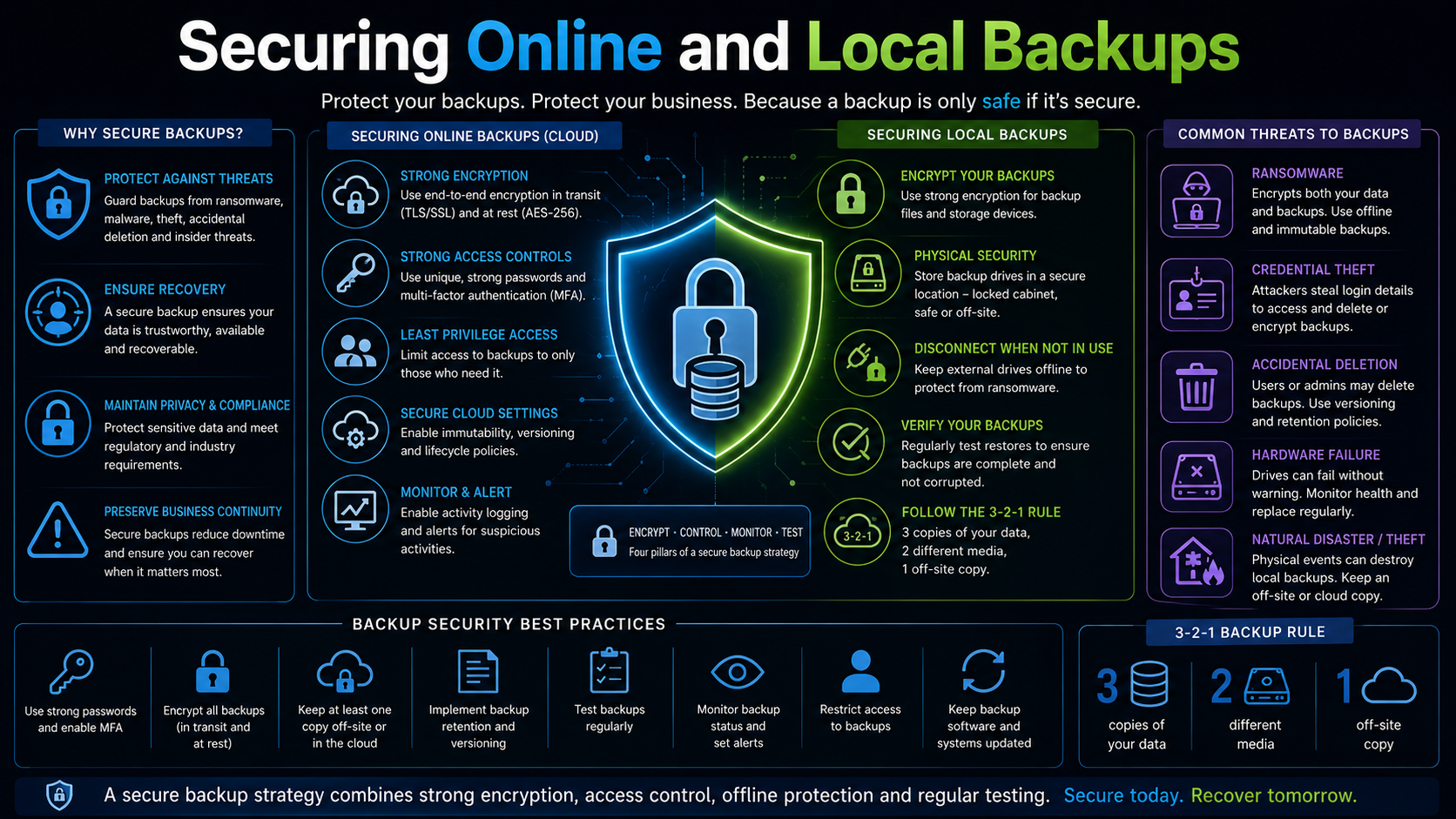
Permissions and Security
Do not run Python or pip as an administrator or root user unless the task genuinely requires it. Project packages should normally be installed inside a user-owned virtual environment.
Third-party packages can execute code and should be treated as software dependencies, not harmless documents. Review package ownership, release history and known security issues before using them in sensitive systems.
Application secrets should be supplied through a secure configuration method or secret store. They should not be hard-coded into Python files, copied into logs or committed to a repository.
Common Setup Problems
Python Cannot Be Found
Confirm the installation and use the correct command. On Windows, try the py launcher and check application execution aliases if the Microsoft Store opens unexpectedly. On Linux, use which python3 and confirm that the appropriate distribution package is installed.
A Package Cannot Be Imported
Confirm that the virtual environment is active and that the editor uses the same interpreter. Run python -m pip show followed by the package name. If no information is displayed, the package may have been installed into another environment.
A Script Fails
Read the complete traceback. The final line identifies the error type, while the lines above show where the failure occurred. Common early problems include indentation errors, missing brackets, misspelled names, incorrect paths and unavailable packages.
Maintaining Python Projects
Keep Python and project packages supported, but do not update a working production application without testing. A new dependency version can change behaviour or remove features.
Use version control, record dependency versions and test upgrades in a separate environment. Automated tests make it easier to confirm that expected behaviour has not changed.
Document the supported Python version, setup procedure, configuration variables, dependency installation and test commands in the project’s read-me file.
Recommended Python Workflow
- Install or confirm a supported Python 3 interpreter.
- Create a separate folder for the project.
- Create and activate a virtual environment.
- Install only the packages the project requires.
- Select the environment’s interpreter in the code editor.
- Run and test the program from the project directory.
- Record dependencies and use source control.
- Protect credentials and review third-party packages.
- Test updates before deploying them.
Final Thoughts
Python is easy to begin using, but an undisciplined setup quickly causes confusion. Global package installations, mixed interpreters and undocumented dependencies commonly produce applications that work on one computer but fail on another.
Separate every project with a virtual environment, keep the editor and terminal on the same interpreter, record dependencies and protect sensitive configuration. These practices make Python projects easier to reproduce, troubleshoot and maintain.
Once the environment is set up correctly, the same core workflow works effectively on both Windows and Linux, allowing Python to be used for everything from small administrative scripts to substantial production applications.